PURCHASE RECORD / CONFIGURATION
New or Reset Device: Restore the Purchase, Then Restore Your Configuration
Your purchase history confirms your eligibility to get the app; your subscription and configuration determine what connection it uses. Check these in order to avoid mistaking a missing configuration for a need to buy the app again.
Restore from App Store Purchases
On your new device, open App Store → Account → Purchased and look for Shadowrocket. Depending on the system, the relevant section may appear as “Apps” or “My Apps.” Make sure you’re signed in with the Apple ID used for the original purchase, then download the app from your purchase history. You usually won’t need to pay again. Follow the same steps after reinstalling on the same device; you don’t need to start another purchase from search results.
If the page shows a price, pause before paying. Check the account signed in to Media & Purchases and compare it with your purchase history. Also check whether the app is hidden from your purchases and whether your current region affects what appears in the store. A purchase doesn’t automatically transfer to a different account when you change devices, and restoring other device data doesn’t replace checking the App Store account.
Family Sharing availability depends on your family settings and purchase terms; refer to the App Store listing. Don’t confuse Family Sharing with restoring a purchase using the original account. If the store says you can’t redownload the app, note the exact message and check your account and store status before trying to pay again.
Reimport Your Connection Details
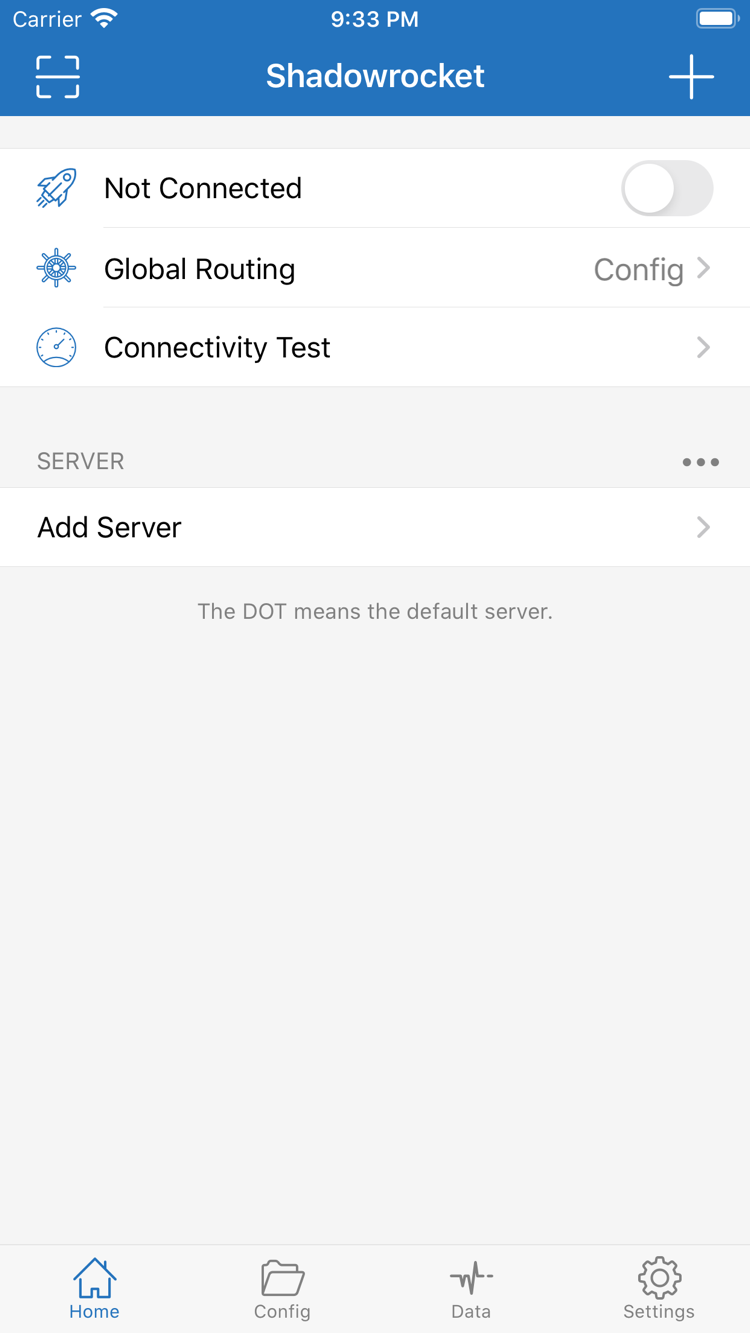
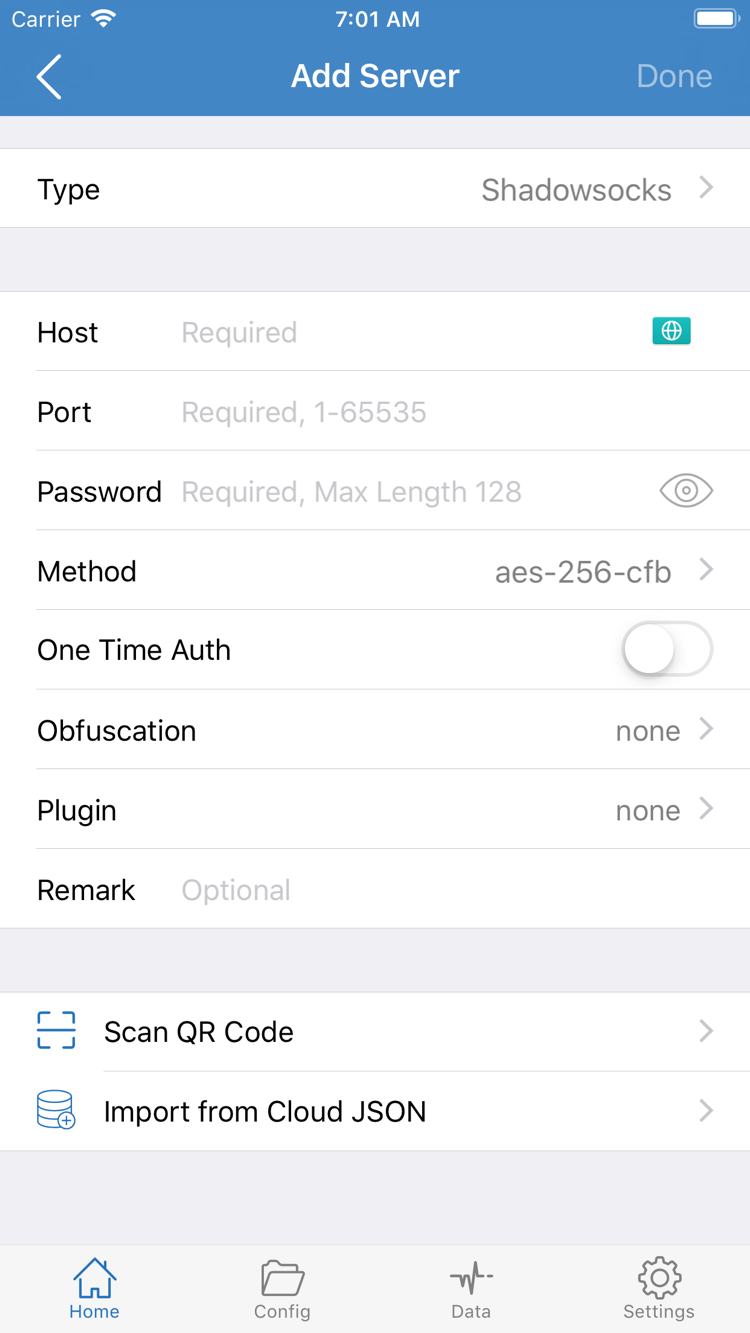
After installation, check that the SERVER section in Home and the configuration files in Config are present. If the list is empty, import your own subscription or re-enter the server details from your existing records. Reinstalling the app doesn’t guarantee that every setting from your previous device was transferred. Check the subscription contents, selected default, routing rules, and DNS settings separately.
If your old device is still available, organize the configuration and authentication details you want to keep before reinstalling. An exported configuration may contain server addresses, passwords, subscription credentials, or personal rules. Store it somewhere you control; don’t post it publicly or share screenshots containing credentials when asking for help. If your subscription address or server authentication details have changed, use the current information from your service provider.
After restoring your setup, run a basic check: select an existing server, confirm that Global Routing matches your current configuration, grant system permission, then check the connection status and run Connectivity Test. Once the basic connection works, check automatic triggers such as On Demand. For step-by-step instructions, read the first connection guide; for rule issues, see the configuration reference.